
Setting Up NorthNet For MACINTOSH CD-Rom
Step 1.
Insert the CD ROM into the tray and close the tray.
Double click the icon EASYNET when it appears on your desktop.
Double click on setup.exe to start the installation.
Step 2.
Read the license agreement and click "I Agree".
You will be presented with the "Personal Configuration Wizard."
Enter the ISP code: NNT
Click on NEXT
Enter your dial up login name
(this is the username from your application. Enter it in small letters
(Leave the E-mail address blank.)
Click on NEXT
Enter your real name in this field
Click on FINISH
Read the "Acceptable Use Policy" and click on "I Agree"
If you already have Netscape on your computer you may skip to STEP 4
Step 3.
Installing Netscape Communicator
I
f you have a 680x0 (non power mac) you must to install Netscape Navigator 3.01 otherwise install version 4.From the Available Titles list select Netscape Communicator by clicking on it once.
Then click the install button to the right.
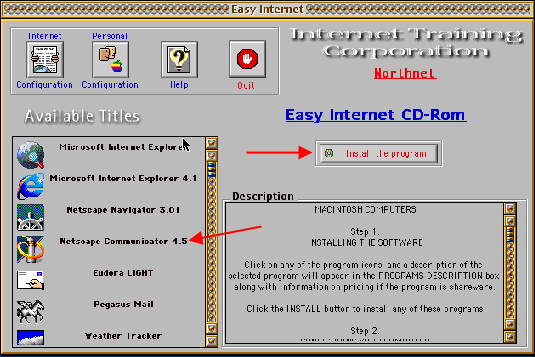
Click the continue button on the license agreement
The Netscape Installer window will appear-
Do an EASY INSTALL
Install to your hard drive-click the INSTALL button
When the window telling you that you need to restart after installation appears click CONTINUE
Netscape will install and bring up the restart window-click RESTART
STEP 4.
After your computer restarts-close all windows and double click the EASYNET icon
Double click on Setup.exe
Click the Internet Configuration button in this window
YOU MUST CHOOSE A CITY AND PHONE NUMBER THAT IS LOCAL FOR YOU
If you do not you will be charged for long distance calls
Choose ALL STATES
Click the arrow next to choose a local city and pick the correct city for your area
Click the arrow next to choose a local number-your local number will appear-click the arrow again
Click the next button
The image below is an example only. You must choose a local city and number.
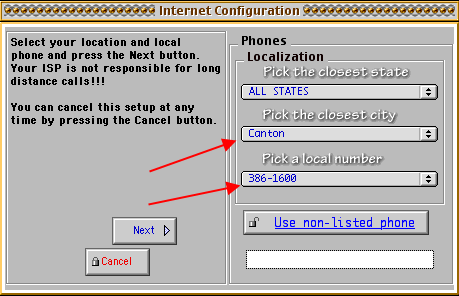
You will see the configuration window
Click the configure button
Click the done button
This will bring you to the main page again
Click the Quit button
Close all windows and remove the CD.
Making an alias
You should make an alias of both your PPP control panel (Remote Access if System 8.5 or an IMAC) and Netscape Communicator.
To do this go to your apple- select control panels and release your mouse. This will open your control panel window. Highlight PPP (or Remote Access) by clicking on it once. Go to FILE and select MAKE ALIAS. Drag the alias out of the control panel window and place it in the lower left hand corner of your desktop.
Close all windows
To make an alias of Netscape go to your harddrive find the Netscape folder, open it and click on the icon once. Go to FILE and select MAKE ALIAS. Drag this alias to the lower left of your desktop.
Close all windows.
How to connect:
To log on to the Internet you first double click the PPP Alias. (Remote Access if you use System 8.5 or an IMAC)
Type in your password.
Click the connect button.
This will take you through the connection process (you will know you are connected if the center of the window fills up with information).
At this point, go to the Netscape Communicator alias and double click the icon. This will open the program and bring you to NorthNet’s homepage.
How to disconnect: